 ChatGPT
 Perplexity
 Claude
 Grok
GrokA CLI, or command line interface, is a text-based way of interacting with a computer, operating system, or application by typing commands instead of clicking buttons or icons. It runs inside a terminal or console window and turns each typed line into an instruction the underlying software executes immediately. Developers, system administrators, and increasingly business teams use a CLI to install software, manage servers, automate repetitive tasks, and control APIs faster than a graphical menu allows. Tools like Git, npm, and AWS all ship with their own CLI. This guide explains how a CLI works, how it differs from a GUI, and when you actually need one.
What Does CLI Stand For
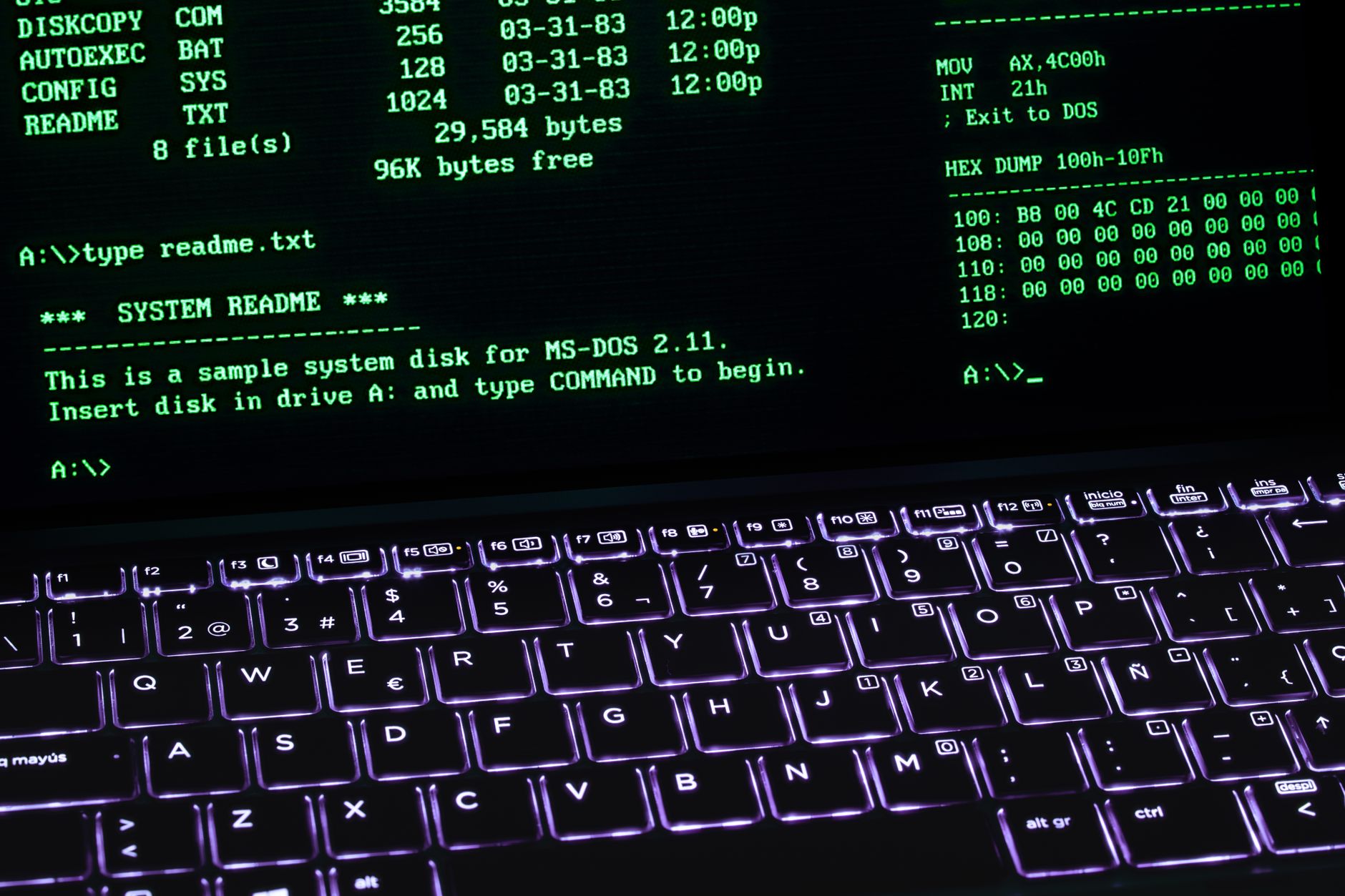
CLI stands for command line interface, a term that describes any interface where the user types text commands rather than pointing and clicking. The word command refers to the specific instruction being issued, and line refers to the single row of text where that instruction is entered. A CLI is not a specific program: it is a category of interface, and many different CLIs exist, each tied to a particular shell, operating system, or piece of software. Bash, PowerShell, and Command Prompt are all examples of a CLI shell, while tools like the ContioReach API, Git, and Docker each expose their own command-based interface on top of that shell.
How a Command Line Interface Works
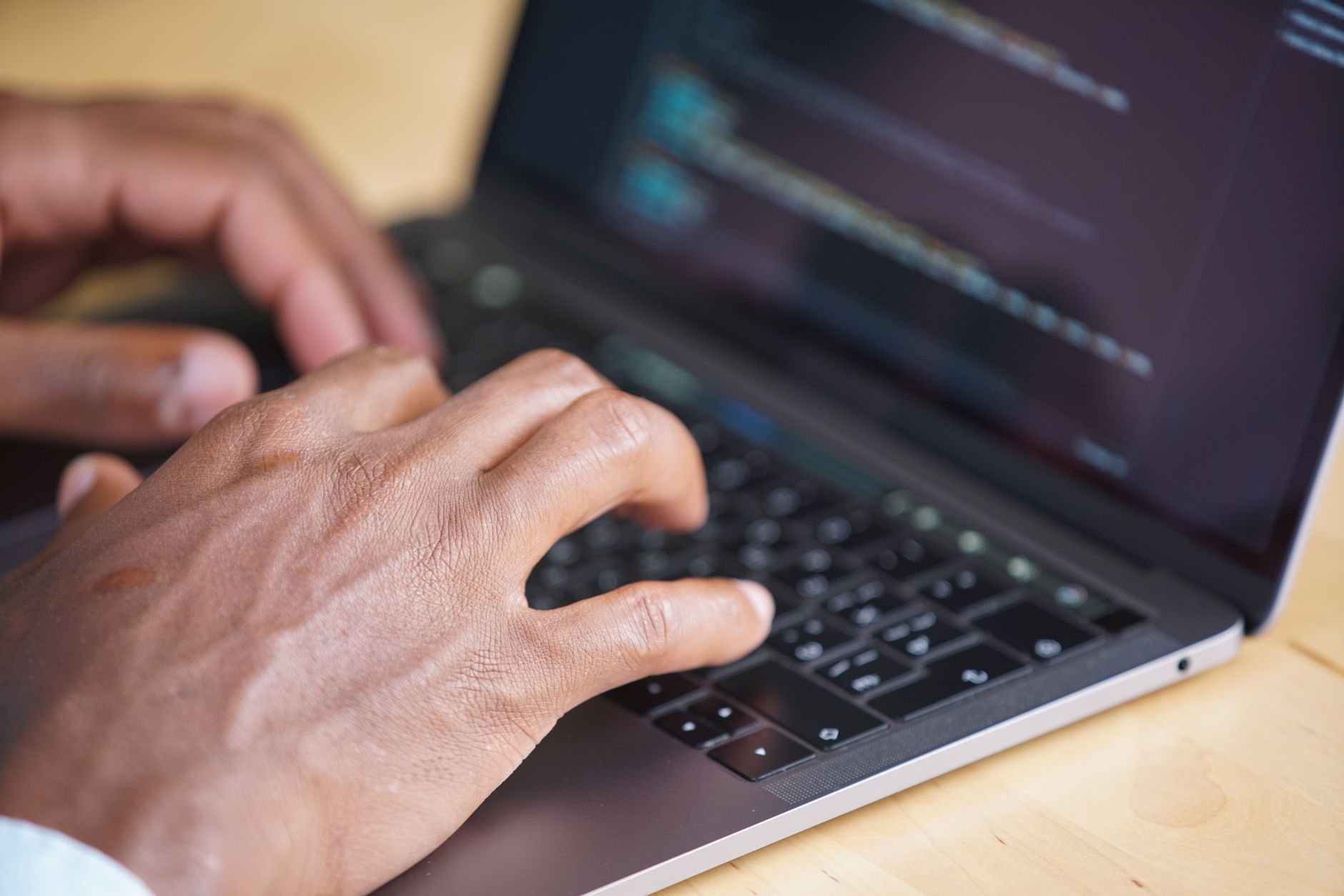
A CLI works by reading a line of typed text, matching it to a known command, and running the corresponding action on the system. Here is the basic loop every command line interface follows, whether it is a local shell or a remote tool.
You open a terminal or console — a window that accepts keyboard input and displays text output.
You type a command, usually made up of a program name, an action, and optional flags or arguments (for example,
git commit -m "update").You press Enter, and the shell parses the text into a program name plus its parameters.
The shell executes the matching program, which performs the requested action against files, a network connection, or another system.
The result prints back to the terminal as text: a confirmation message, an error, or requested data.
Because every step is text in and text out, a CLI is easy to script, log, and repeat exactly the same way every time, which is the core reason automation tools are built around it rather than around a GUI.
CLI vs GUI: What Is the Difference
The main difference between a CLI and a graphical user interface (GUI) is input method: a CLI takes typed commands, while a GUI takes clicks, taps, and drag actions on visual elements like buttons and menus. A GUI is generally easier for a first-time user because the available actions are visible on screen. A CLI has a steeper learning curve since the user has to already know the correct command and its syntax, but it responds faster, uses fewer system resources, and can be scripted so the same task runs unattended thousands of times. Most operating systems, including Windows, macOS, and Linux, ship with both: a GUI file explorer for everyday use and a CLI shell, such as Terminal or PowerShell, for advanced or repetitive tasks.
Aspect | CLI | GUI |
|---|---|---|
Input method | Typed text commands | Clicks, menus, icons |
Learning curve | Steeper, syntax must be known | Lower, actions are visible |
Speed for repetitive tasks | Fast, easily scripted | Slower, manual steps repeated |
Resource usage | Low | Higher, renders graphics |
Best for | Automation, remote servers, bulk operations | Everyday use, visual tasks, beginners |
Common Examples of a CLI
Some of the most widely used command line interfaces include operating system shells and developer tool CLIs that millions of people run every day. Recognizing these examples makes the abstract definition concrete.
Bash and Zsh — the default shells on Linux and macOS terminals.
PowerShell and Command Prompt — the built-in command line interfaces on Windows.
Git — a CLI for version control, used with commands like
git cloneandgit push.npm and pip — package manager CLIs for installing JavaScript and Python dependencies.
Docker CLI — used to build, run, and manage containers with commands like
docker run.Cloud provider CLIs, such as the AWS Command Line Interface, used to manage cloud infrastructure from a terminal instead of a web console.
Why Developers and Businesses Use a CLI
Teams choose a CLI over a GUI when a task needs to be fast, repeatable, or automated rather than performed manually one time. A single command can replace a dozen clicks, and that same command can be saved into a script and reused indefinitely without human involvement. This matters directly for content and marketing operations too: a headless CMS like ContioReach exposes its publishing workflow through an API that developers can call from a CLI or automated script, which is exactly how the auto-publish solution takes a piece of content from draft to a live post without a person opening a dashboard for each step. Common reasons to reach for a CLI include:
Automating a task that would otherwise require repeating the same manual clicks daily.
Managing a remote server that has no graphical interface at all.
Running the exact same setup command across many machines or environments consistently.
Integrating a tool into a larger script or continuous integration pipeline.
Getting faster access to advanced options that a GUI may not expose at all.
How to Get Started With a CLI
Getting started with a CLI takes only a few minutes: open your operating system's built-in terminal application, learn a handful of navigation commands, and practice running one tool end to end. Here is a simple path for a first-time user.
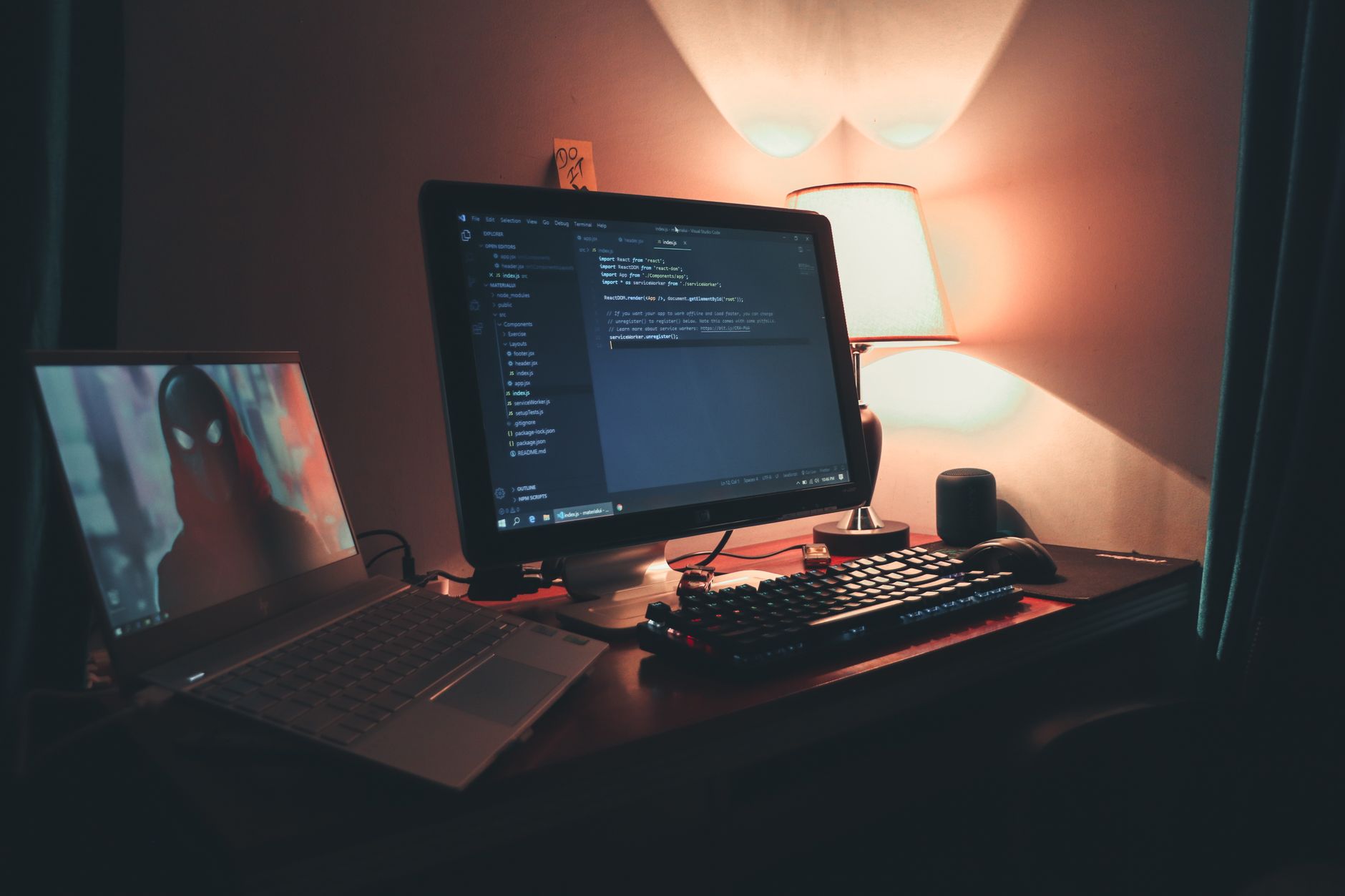
Open a terminal. On macOS, open Terminal from Spotlight search. On Windows, open PowerShell. On Linux, most desktop environments include a terminal application in the applications menu.
Learn basic navigation commands, such as
cdto change directories,lsordirto list files, andpwdto show your current location.Install one CLI tool, such as Git, and run a simple command like
git --versionto confirm it works.Read the tool's help output by typing the tool name followed by
--help, which lists every available command and flag.Practice with low-risk commands first, such as listing files or checking a version number, before running anything that changes or deletes data.
Most developer tools, including API-driven platforms, publish their own command reference. ContioReach's Getting Started documentation walks through connecting to the API for the first time, and the full API documentation covers every available endpoint for teams building CLI-based or scripted publishing workflows.
Common Mistakes to Avoid With a CLI
New CLI users tend to run into the same handful of problems, and knowing them in advance saves a lot of frustration. Watch for these before they cause real damage.
Running destructive commands without understanding them first, especially anything involving delete, remove, or force flags.
Ignoring capitalization and exact syntax, since most CLIs are case-sensitive and a single typo changes the meaning of a command.
Skipping the help flag instead of guessing at available options, which leads to trial-and-error errors that a quick
--helplookup would have prevented.Copying commands from untrusted sources and running them without reading what they actually do first.
Not checking which directory you are in before running a command, which can apply an action to the wrong files or project.
Frequently Asked Questions

What is a CLI in simple terms?
A CLI is a way to control a computer or piece of software by typing text commands instead of clicking on-screen buttons. You type an instruction, press Enter, and the system carries it out and prints the result as text. It is the text-based alternative to a graphical user interface.
What does CLI stand for?
CLI stands for command line interface. It describes any tool or shell where a user types commands on a single line of text to control software, as opposed to a graphical user interface where actions are performed with a mouse and visual menus.
Is a CLI the same as a terminal?
No. A terminal is the window or application that displays text input and output, while a CLI is the interface and set of commands running inside it. A terminal is the container; the CLI, such as Bash or PowerShell, is what interprets and executes the commands typed into that container.
Is CLI better than GUI?
Neither is universally better; each fits different tasks. A CLI is faster and easier to automate for repetitive or advanced tasks, while a GUI is easier to learn and better for visual, one-off tasks. Most professionals use both depending on what the specific job requires.
Do I need to know how to code to use a CLI?
No, using a CLI does not require coding knowledge, though it does require learning specific command syntax. Basic navigation commands like cd and ls can be learned in under an hour. Writing your own scripts that chain commands together is closer to programming, but running existing commands is not.
What is an example of a CLI command?
A common example is git clone https://github.com/example/repo.git, which downloads a copy of a code repository to your computer. Another simple example is cd Documents, which changes your current directory to the Documents folder.
Is ContioReach's API accessible from a CLI?
Yes, the ContioReach API is designed to be called from a CLI, script, or automation pipeline, not just a dashboard. The Getting Started guide covers authenticating and making your first request from a terminal.
How long does it take to learn CLI basics?
Learning enough CLI basics to navigate folders, run programs, and use simple flags typically takes a few hours of hands-on practice. Becoming comfortable with a specific tool's full command set, such as Git or Docker, usually takes a few weeks of regular use rather than a single sitting.
Conclusion
A CLI is a text-based interface for controlling software through typed commands, and it remains the fastest, most automatable way to manage servers, developer tools, and APIs even as graphical interfaces have improved. Once you know a handful of navigation commands and how to read a tool's help output, a command line interface stops being intimidating and becomes the quickest path to getting real work done. If you are building or publishing content through an API-driven workflow, explore ContioReach's API documentation to see how CLI-friendly automation fits into a modern publishing pipeline.
Written by
Team Contioreach
Creates expert content on SEO, AI search, content strategy, and automation to help businesses grow their online visibility.